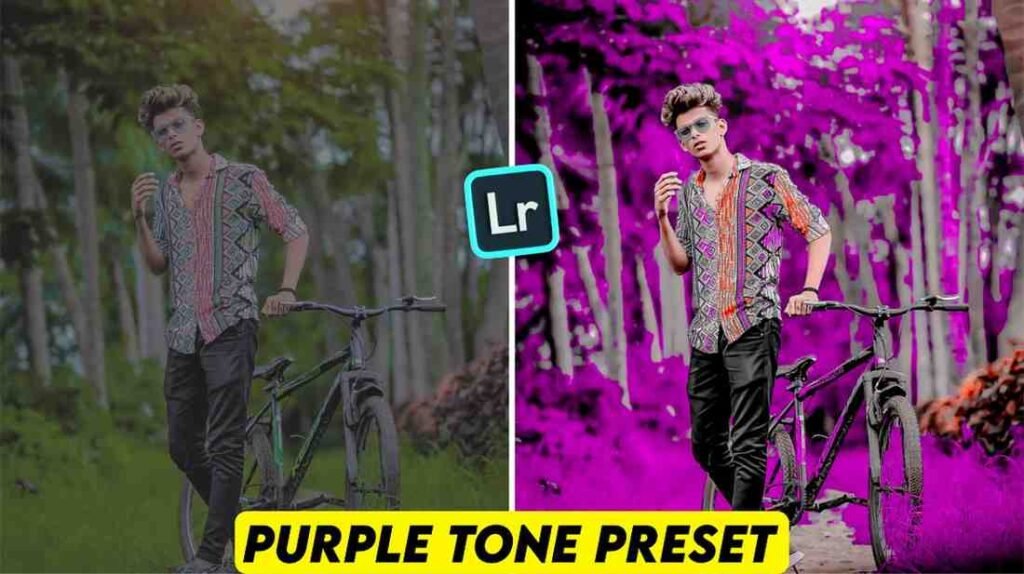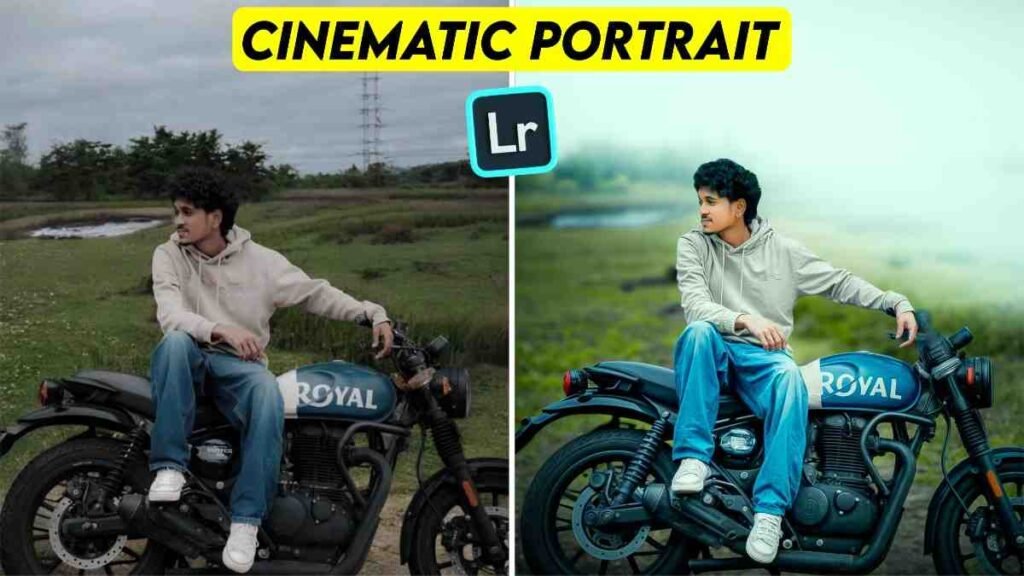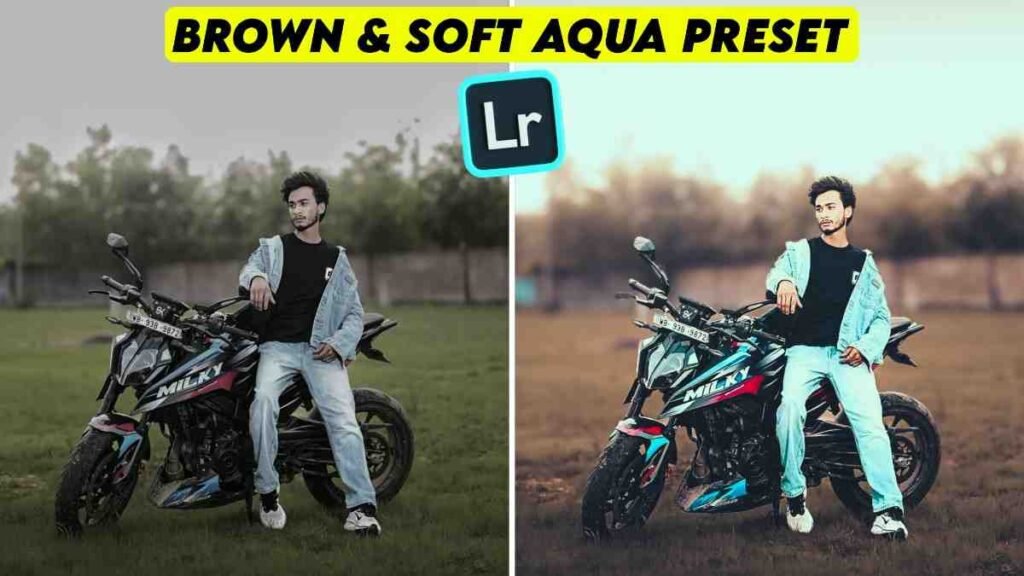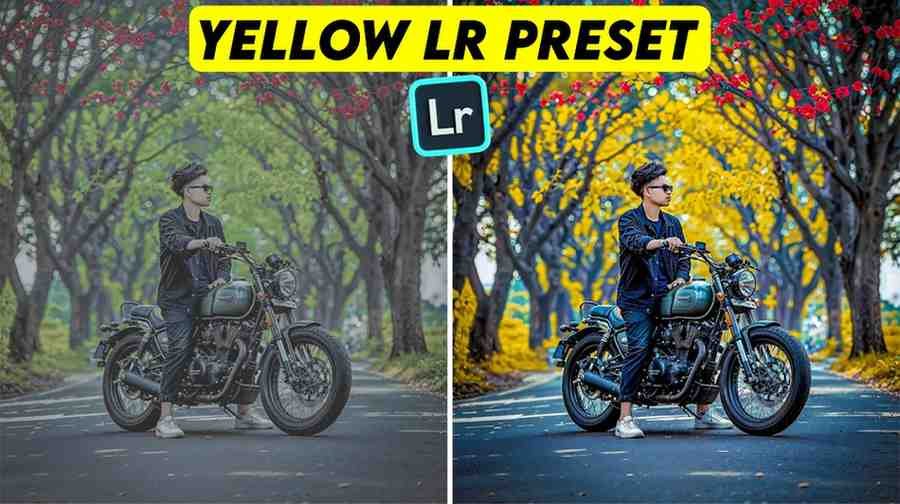
We all want to edit pictures on our phones, but sometimes the colors do not look good. When I first started taking photos, I spent many hours on just one picture. If I fixed the light, the color became bad. If I fixed the color, the picture looked very dull.
Because of this problem, I thought of a quick trick, and that is a preset. Many people ask me how to use these presets on a phone?
In this article, I will share my own story to show you how to make your normal picture look like a professional picture in a very short time. Many people think it is very hard to add presets inside a mobile app, but it is not hard. To tell the truth, when I tried it for the first time, I saved the wrong file format. It did not work in the app at all. I was very angry. Later, when I understood the real rule, I saw that it is as easy as water.
If you are thinking about how to bring these beautiful colors to your phone, you are in the right place. I will explain the whole process below in a very easy way, and you will not have any more questions.
What is a DNG Preset?
When we talk about Lightroom Mobile, we hear the word DNG again and again. In the beginning, I was very confused about this thing. A DNG is a special kind of picture file. To say it simply, it is a picture that already has all the settings for colors, lights, and bright parts hidden inside it. You can call it a magic box.
When you save a DNG file on your phone, it will look like a normal picture in your gallery, but when you put it inside the editing app, its real magic comes out. This file does not lose its good quality like other files, and all the data inside stays safe. That is why this format is very famous around the world for mobile editing. In this article, I will show you how to use this file and how to add it inside the Lightroom app.
How to Add Presets to Lightroom Mobile
Adding these color tones to your phone is very fun. You do not need to do hard coding or cut and paste inside files. Usually, when we like a style or color on the internet, it is a DNG file. Your job is only to save that file safely in your phone gallery. I see many times that people cannot find the file after downloading it, or they think the file is broken. This happens because many phones cannot open these files directly. But do not be afraid. The file is inside your phone, and you just need to bring it into the app in the right way. When the file comes inside the app, half of your work is done. In the next paragraph, I am telling you how to add it correctly inside the Lightroom app.
How to Import Presets into Lightroom Mobile (Step-by-Step)
Now let us come to the main point. I will explain the whole thing step by step below so that you can do it easily on your phone. I follow this same rule every day, and this trick will help you find your file very easily.
First, you need to install the Lightroom application on your phone. You can get it from the Play Store, and if you use an iPhone, you can get it very easily from the App Store.
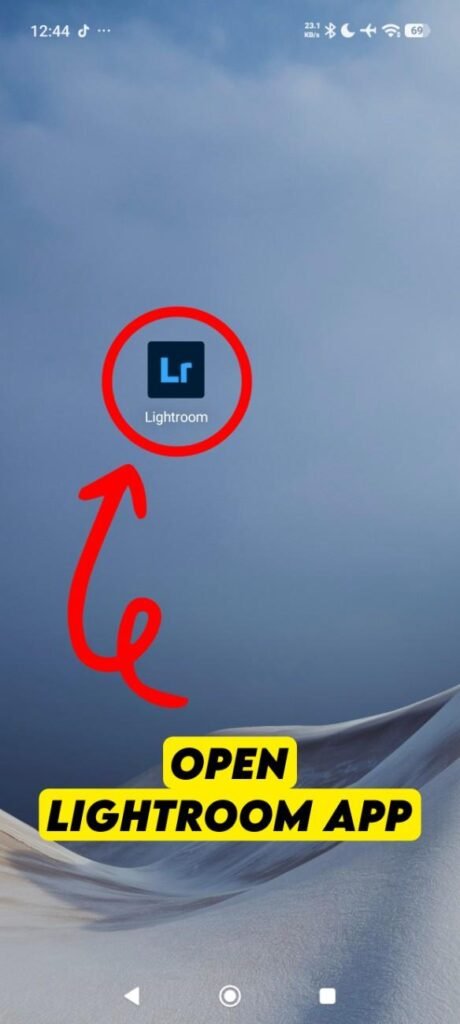
Then, open the application, and make an account here with your Gmail ID. This is very important because sometimes settings do not save if you do not have an account.
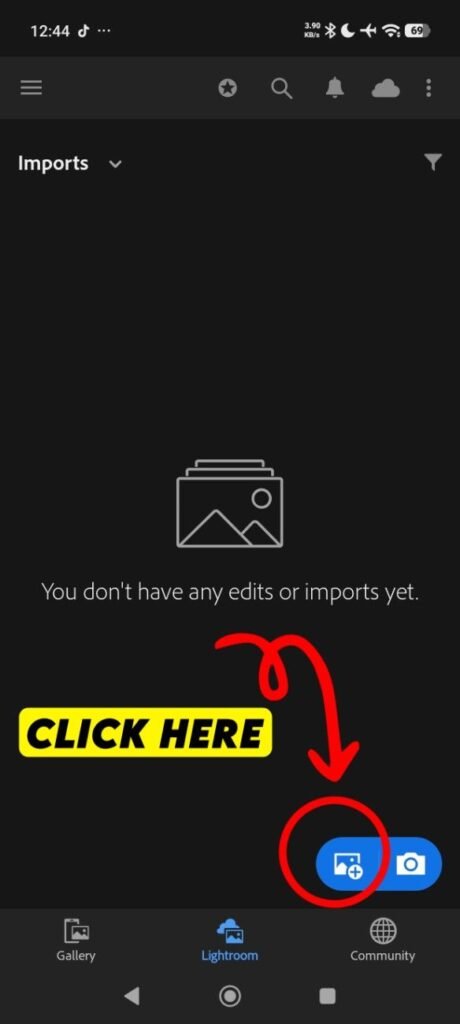
After that, when you open the application, you will see a blue button at the bottom, and you must click there.
Next, when your phone gallery files come in front of you, you will see three dots at the top right corner. You need to click on those three dots.
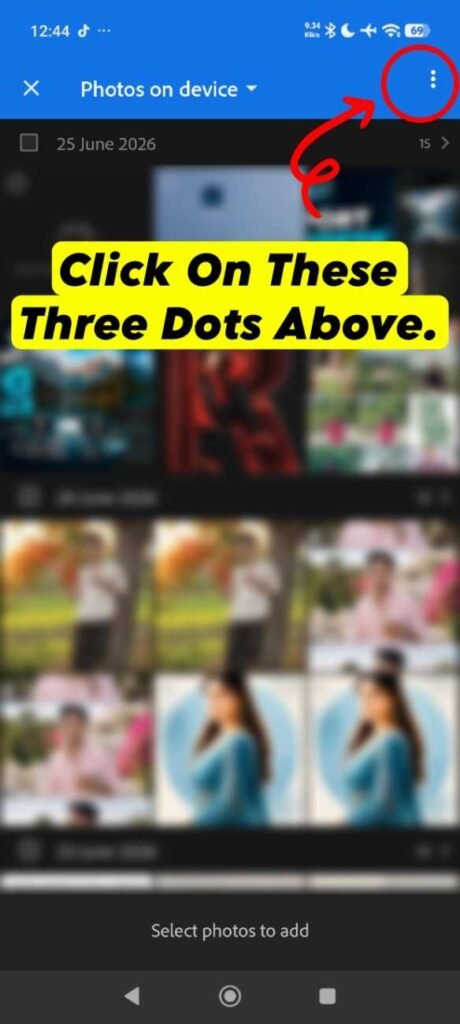
When you click there, some options will come in front of you. You have to turn off two options from there. The two options are JPG, PNG and Videos. Usually, there is a check mark on them before. You just need to click and remove the check marks from these two options.
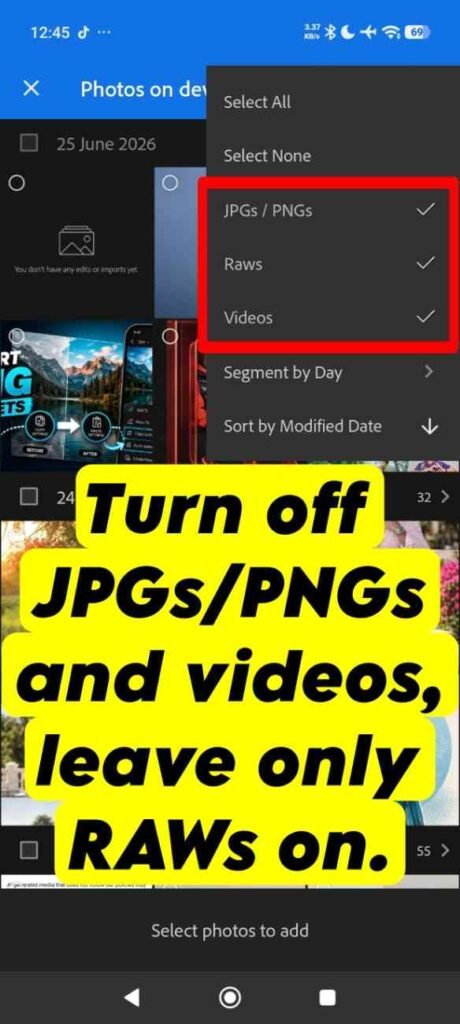
Only the RAWs option will have a check mark on it. This small work will magically hide all the extra pictures or videos on your phone, and only the real Lightroom presets or DNG files will show on your phone screen. This will save your time.
Now, just click on the preset that you want to add inside the app.
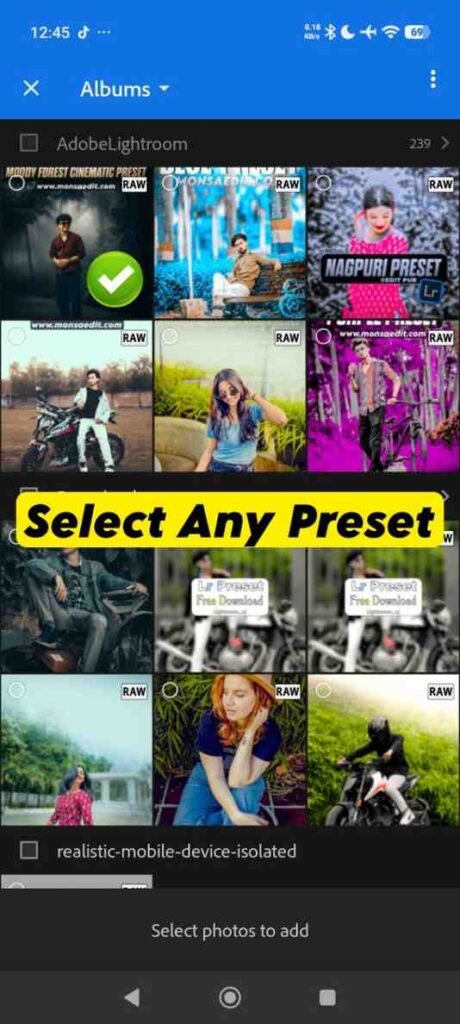
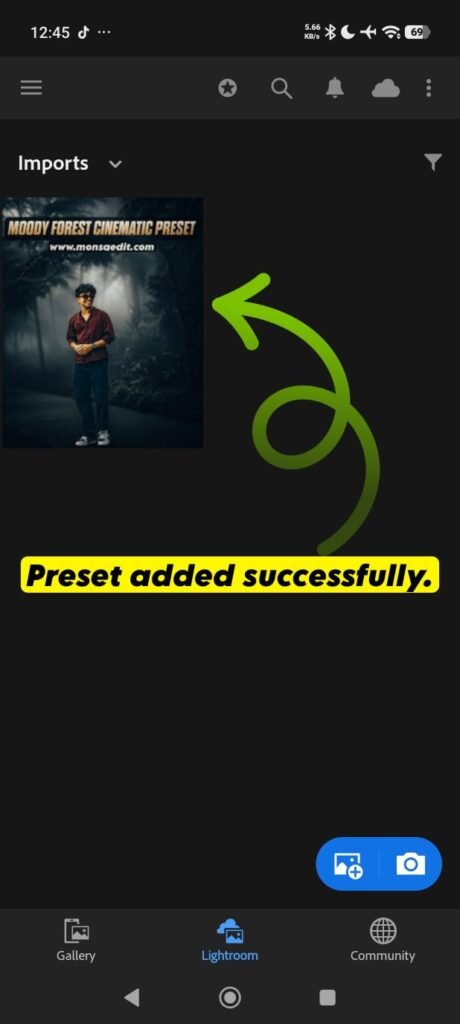
Right after you click, you will see an Add option or button at the bottom. Click on that Add button. This small work will add the preset perfectly to your mobile Lightroom app.
How to Use DNG Presets in Lightroom Mobile (Step-by-Step)
You have added the preset. Now, the real work is to use it to edit a great photo for yourself. I will explain the whole thing step by step below to show how you can use it to edit photos.
- Open the Lightroom app, then use the same way to find the blue button at the bottom where you see options for camera and gallery. Select the gallery option from there, and add the picture that you want to edit.
- After that, open the Lightroom preset that is given today. Click on the three dots option at the top, and copy the settings. When you copy settings, make sure that all the boxes have a check mark.
- Later, go to the photo that you want to edit, click on the three dots at the top, and paste the settings there. This will make your photo ready in just one click.
- This small method will edit your photo in a very short time with just one click. You can also change things if you want. If you feel you want to change a color, make the light brighter, or make the contrast less, you can fix everything.
How to Transfer Presets from Lightroom Desktop to Mobile
Some people love to work on a computer, but they use the phone more when they need it. When I made a beautiful color tone on my computer, I also wanted to bring it to my phone quickly. The easiest way is to use cloud sync or cloud storage. If you log in with the same Gmail or Adobe ID on your computer and your mobile app, all the imported files will come to the mobile app by themselves. If you do not have a premium account, export that color tone as a DNG file from the computer. Then, send it to the phone using Google Drive or a data cable, and the work is done.
Why Won’t My Presets Show Up in Lightroom Mobile?
Sometimes, the color tones do not show up inside the app even if you follow all the rules. I faced this problem many times, and it made me feel bad. The main reason is that when we import a file, the app thinks it is a picture and sends it to an old date or an old folder. You might think the file did not come, but it is hiding somewhere at the bottom of your gallery. The solution is to go to the filter option at the top of the app and check the Recently Added or Photos section carefully. Also, this problem can happen when the app cache memory is full.
Why Won’t Lightroom Let Me Import Presets?
If you see that the app does not let you add any file, you must know there is a mistake at the start. Sometimes, the file does not download fully because the internet stops in the middle, and the file breaks. The app will never take a broken file. Also, sometimes your phone memory is completely full, so there is no space for a new file inside the app. To fix this problem, first check your internet connection and try to download the file again. It is also good to go to the app permission settings and see if the storage permission is turned on.
How to Get DNG Presets for Lightroom Mobile
It is very easy to get this Lightroom preset. I am telling you all the details because nobody else will tell you this. If you read the whole article and came here but did not get the preset today, then all your time is wasted.
You do not need to do anything to get the Lightroom preset. Just visit our website, go to our Lightroom category, and you will find thousands of new DNG presets there. You do not need to run anywhere, everything is inside your hands.
My Personal Experience
When I first started photo editing, I did not know how to make a normal picture beautiful. If I asked a friend, they did not want to teach me correctly. One day, I found some files on the internet and downloaded them, but I wasted a whole day because I did not know how to set them in the app. When I found this little trick of copy settings and paste settings by myself, I was very happy. I do not want any new editor to waste their valuable time like me. So, today I shared all my secret tricks with you so that even a small child can read this text and make their picture beautiful. Editing is not a hard job, you just need to know the right way.
Conclusion
I hope you do not have any doubts about how to import presets into lightroom mobile after reading this guide today. I tried to explain the whole process of importing presets to lightroom mobile in very easy words from my own real experience. By using this trick, you can now add presets inside the Lightroom app very easily, and you can edit your photo like a professional. If you have any problem saving or using this lightroom preset, please tell me in the comment section below, and I am always ready to help you.
Frequently Asked Questions (FAQ)
Q1. How to add presets to lightroom mobile easily?
Answer. Open the DNG file in the app, click on the three dots at the top to copy settings, and then go to your picture to paste settings.
Q2. Why is my DNG file showing as a blank image in the gallery?
Answer. The normal gallery of many phones does not support the DNG format, so it looks blank, but it works perfectly inside the Lightroom app.
Q3. Can I use these presets for free?
Answer. Yes, you can use all the color tones given on my website for free for your whole life.
Q4. Do these presets reduce photo quality?
Answer. Not at all, these files do not reduce the quality or the megapixels of your original picture even a little bit.
Q5. What to do if the copy-paste option is missing?
Answer. You will get this option if you update your Lightroom application to the latest version from the Google Play Store or App Store.